I’m working on an project adjacent to my George Long project. I want to identify his wife’s parents, or at least her father. Her name was Isabella McCullough. A will was located for a Hugh McCullough leaving things to his daughter Isabella Long. A slam dunk, right? Um no. These people are trying to take away my last remaining brain cells, I think. I have found TWO Isabella McCulloughs who married Long men, one to my George Long, and one to James Long. I am not sure if or how James Long is related to my Longs, but that is another story.
The main point of this post is to highlight the amazing perk from FamilySearch’s Full Text Search that I hadn’t anticipated, but makes total sense. We can find papers that have been misfiled! I posted about another couple of examples of this before, but just came across another one. In the midst of Hugh McCullough’s estate papers, are several papers that clearly belong to a different estate, that of John Abraham of Jefferson County, Ohio.
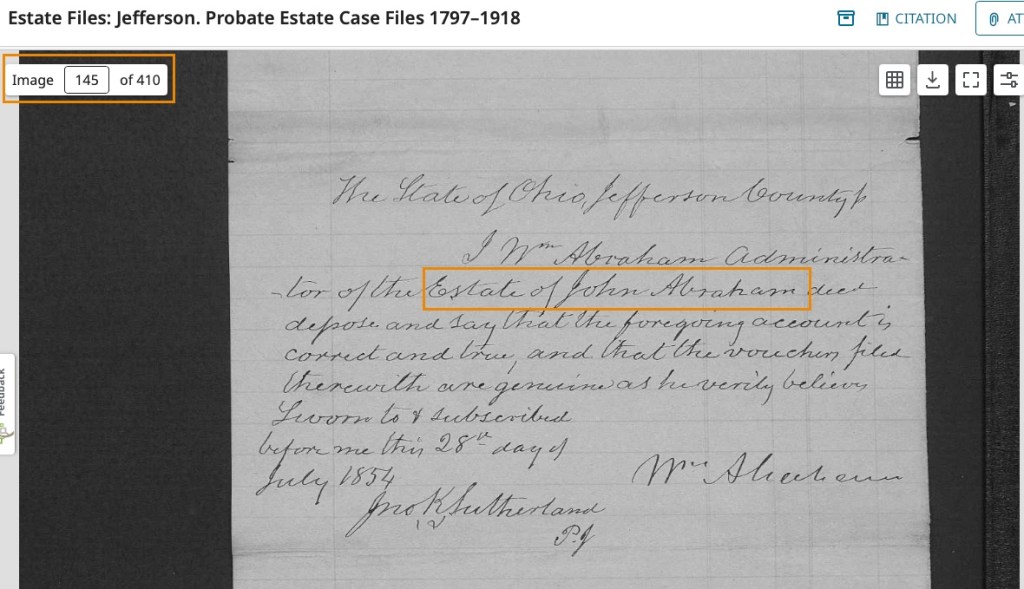
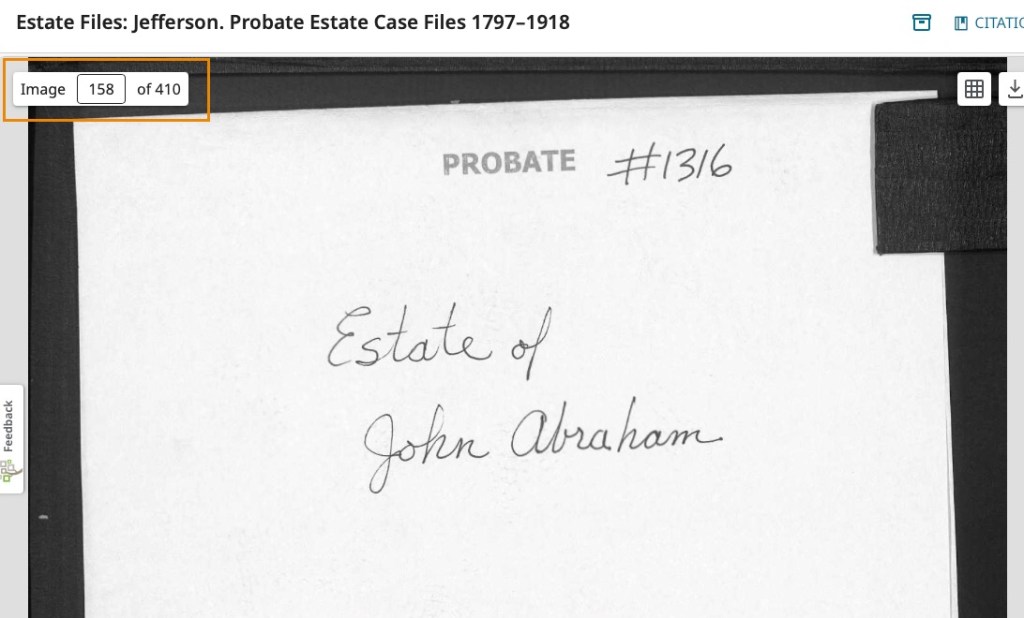
If we were researching John Abraham, unless we examined every page of the microfilm, every file in the courthouse, every image on the digital film, we would have missed this! The images that belong in John Abraham’s file start at image 139 and end on image 145. The pages consist mostly of receipts and the inventory list of the estate sale. Documents I like to see for my ancestors.
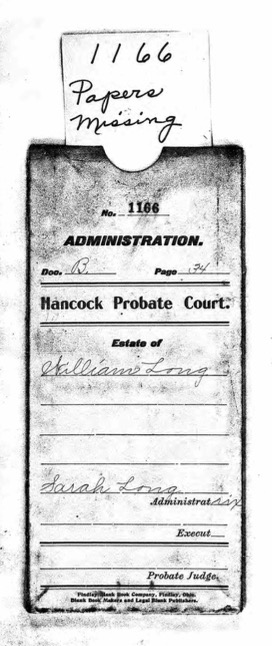
FamilySearch just filmed the pages as they were contained in the folders, so this misfiling happened sometime before the filming. I couldn’t find a beginning placard on this digital set that might have clued me in to the year of filming. It doesn’t really matter. The point is, this happened (and still happens). Papers get misfiled all the time, and are then “lost” because they are not in the right folder. They have been “lost” to us researchers, but they are now findable again because of the Full Text Search. Amazing!










 be done in Powerpoint), and various drawing programs. A friend introduced me to


 Genealogy Pants