Creating a research plan takes a bit of practice. There are differing opinions on just how much planning one should do for a given research question. I have seen long lists of sources one should consult when working on a project. Great, long lists that identify every source you may ever think of (even if it doesn’t apply to a particular ancestor or situation), like this one from the Puget Sound Genealogical Society. Others have taught that the plan should only be a few items, because what you find in those items may dictate where you look next. Some example research checklists, forms, and templates can be found here on Cyndi’s List.
I’ve discussed before that I think (at least in my experience) that are two phases of a genealogists “life.” The collection phase comes first; gathering as much as you can. In this phase you find all of the “low-hanging fruit” such as census records, vital records, newspaper articles, obituaries, and so on. The “easy” to find items for your ancestors. Then there is the phase that you face when the easy-to-find runs out. And not just runs out but when there are conflicts in the records you have found. The second phase I think of as the “brick wall” phase, or maybe just the “it is going to take more concentrated effort to figure out” phase.
I think the long checklist forms you can find are more appropriate for the collection phase. The more thoughtful, intentional, and detailed research plans are what is needed to get through the tougher problems. So, my point in saying all the above is this: What phase are you in? Choose the most appropriate system that works for you. I have two examples one for each “phase” that I will share both over the next few posts and discuss MY thoughts on the benefits of each.
As I have evolved as a genealogist, so has my working style, and specifically how I use research “plogs.” I’m going to share some of my earlier plogs… no judgement. I mainly want to demonstrate how I used to do it, and how I’ve improved, at least in terms of keeping track of my thoughts and research.
My earliest logs were on printed paper. I’m sure I have copies of them, but I’m having some remodeling done in my office and my “stuff” is in piles under drop cloths and I can’t get to them right now. If I can before this series is over, I’ll snap a few photos. For now, let’s look at some of my earliest digital versions.
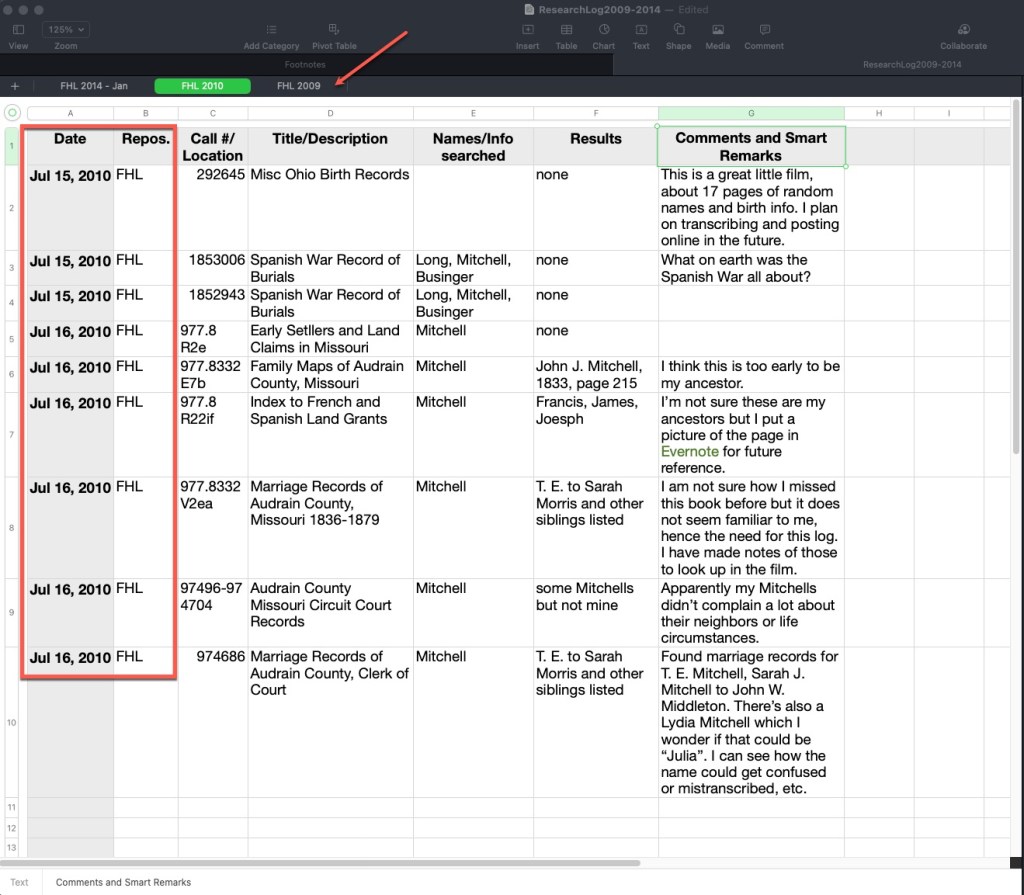
The following plog was done on a spreadsheet. I use a Mac and the Numbers spreadsheet program. It works very nearly like Excel. Across the top you can see tabs indicating the repository and the year. The column headers have not changed a lot over the years. I usually indicate a date, the repository, the call number/film number/manuscript number if it is in an onsite location, or a link and database title if it is an online source, the title or description of that item, the names and parameters used to search, the results, and then any comments, ideas, analysis, etc.
Example Research Plog by Author, using Mac Numbers Spreadsheet
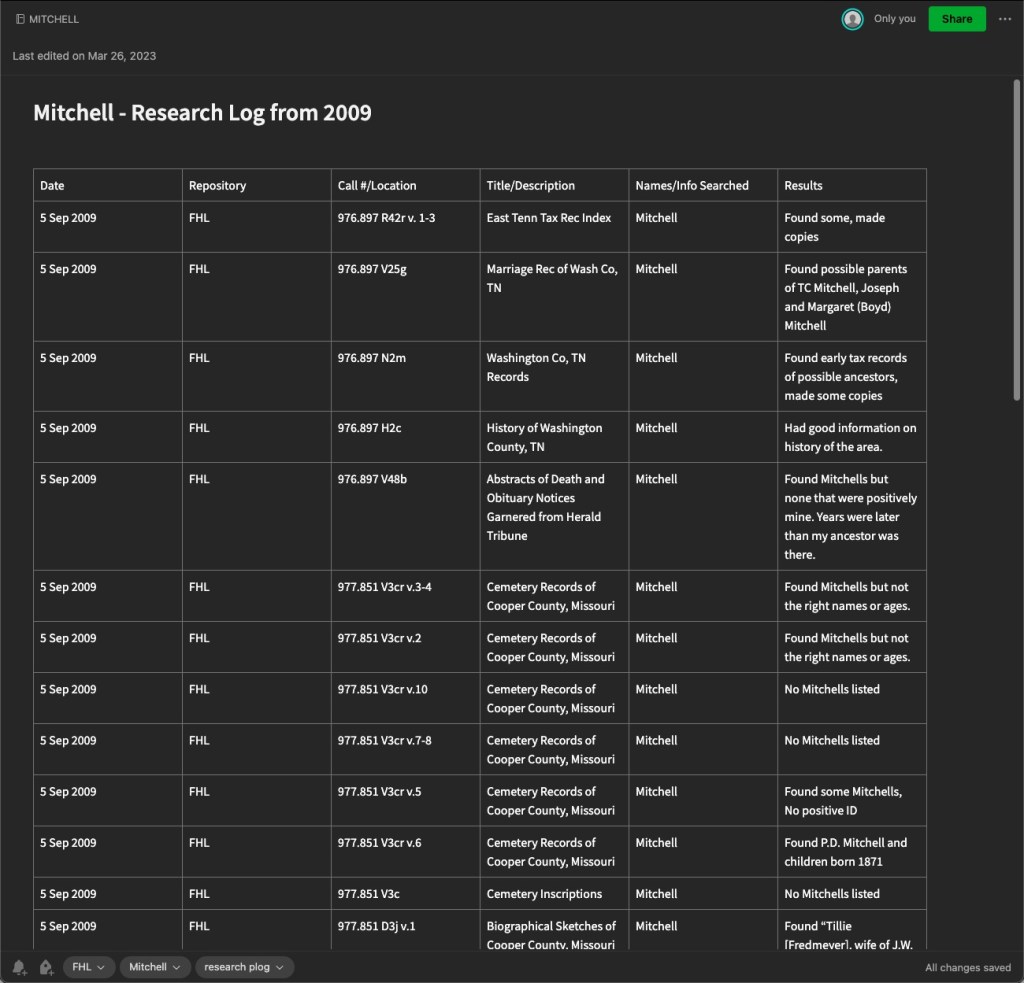
Here is another plog I’ve created, this time in Evernote. Other note programs exist and you may prefer. This is an example of one from 2009, you’ll note very similar column headings. You’ll also note that I didn’t do as much thought-process writing in the results column. I mostly noted what I found. In newer plogs in Evernote, I generally take photos of the pages in books and store them right in Evernote and then link the results in this log to those separate notes so that this log would be much more useful. Stating “Found some, made copies” doesn’t really help if I have to track down those copies. Earlier in genealogy time, we made a lot of paper copies. Now we can take digital photos and link them to these logs.
Example Research Plog by Author, using Evernote
The advantage to a note-taking software like this is that they often are shared to the cloud and you can access them on mobile devices as well as your computer. Of course, a spreadsheet can do this as well if you store in Dropbox or other file sharing service. Note-taking apps generally work more seamlessly, in my opinion. On these things, my advice is to always do what works best for you. It makes no sense to spend valuable research time trying to use someone else’s system if it isn’t working for you. If you have a favorite system, keep using it! Just adapt and evolve.
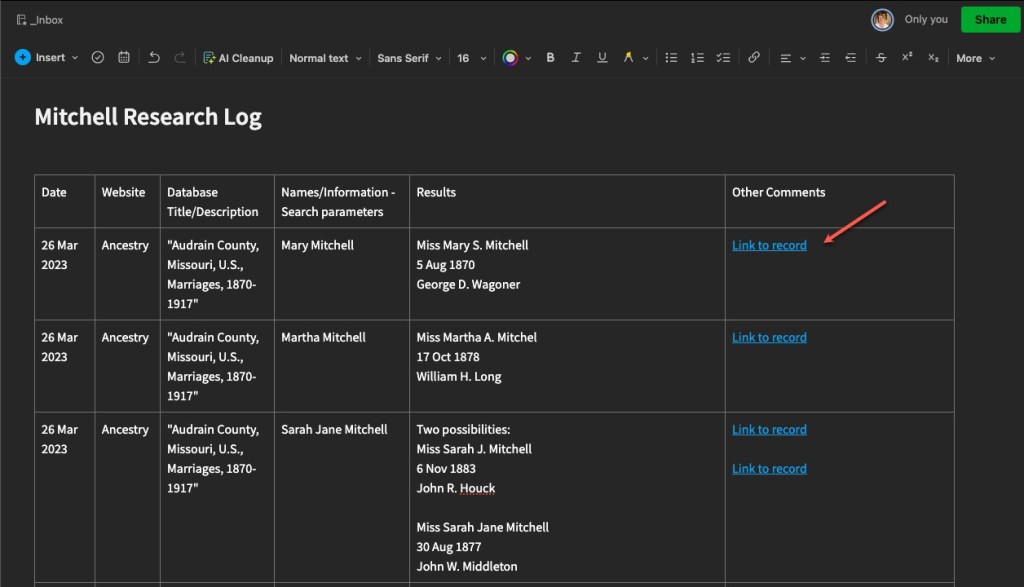
Here is another, more recent plog, showing linked records. These are links directly to the item in online databases, in this case Ancestry. With Evernote, and other note-taking options, you can link to other notes within the software.
Example Research Plog by Author, using Evernote, demonstrating links
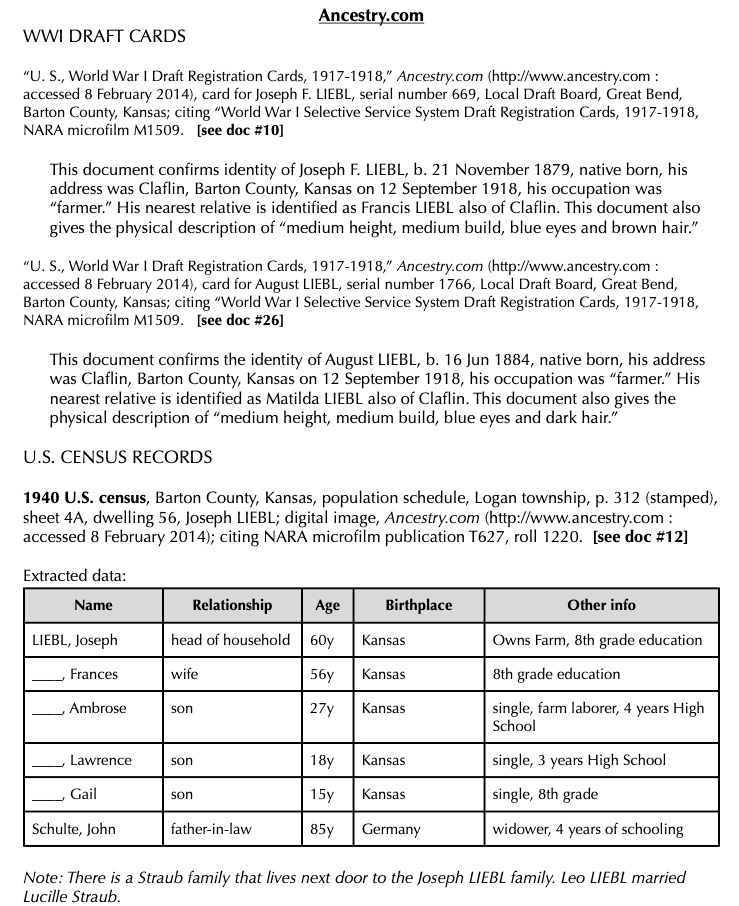
You can, of course, use a word processor to keep a plog as well. Below is an example of one I did back in 2014 as I was experimenting and evolving.
Example Research Plog by Author, using Word Processor
The above example of a word processor plog, I tend to use for client work, but also in my own personal research when I’m trying to “round up” all of the research I’ve done and write more analysis from the findings I collected in the plogs I have made in Evernote or a spreadsheet.
Most recently, I’ve begun doing this “round up” more frequently, writing a kind of informal client report for myself. I think of it as writing notes to my future self telling me what I was thinking at the time, what I thought then that the next steps might be, and future tasks for myself. This has really helped me because my memory is getting worse as I get older (and busier) and I always think I’ll remember what I was doing, but then months go by and I’ve completely forgotten what I was doing.
Next we will talk in more detail about the plan part of the “plog.”
Last time I discussed the “why” of using research research “plogs” (a combo plan/log). Now we will look at some of the “how” for creating a plog that will work for you. The first thing you’ll want to decide is how you’re going to create yours. I have ideas and suggestions, but ultimately, it will be up to you to decide what makes sense for your workflow.
Over the years, I have done this in many different formats. My first research plogs, were just logs (not plans), and were written on paper! I don’t have any of those old plans at my finger tips (if I even kept them at all) or I would should you a picture. You can find PDF forms that you can print and fill in if paper is the way you’d like to go. Check out this category on Cyndi’s List for some options.
Now I utilize digital options for my research plans/logs. The main advantage to this is that they are searchable. Once your plog gets lengthy, and you want to check something, being able to do a keyword search with the “find” option on the software you use is so valuable. The other advantage is that digital plogs can be mobile. If you’re using paper, you have to make sure you don’t forget it when you head off on a research trip. Whereas, depending on the software you use, it can be accessed via your laptop or mobile device if you’re syncing to the cloud.
Options for plogs:
Paper forms
Spreadsheets
Word processing documents or tables
Note-taking software, I use Evernote but others exist
The other aspect I want to share about how I use plogs in the setup stage, is by project. My plogs are based on one project, and those projects are based on a research question.
Early on, I made logs that had to do with a repository visit and nothing at all to do with a particular project, or even a surname. Those got very clunky and unwieldy and just not very usable. They were not organized in a logical way that I didn’t not really discover until later when I went to review what I had done for one particular surname or project.
So I evolved. And that’s what we do, right? We try things, make mistakes, make adjustments, and try again. I guarantee I will likely change how I use my research “plogs” in the future. But for now, they are working for me. We will dive into some in more detail next time and discuss their pros and cons for different types, styles, and versions.
I received the following announcement from the Institute of Genealogy and Historical Research (IGHR):
I am delighted to share with you that Cyndi Ingle has been appointed as the Executive Director of the Institute of Genealogy and Historical Research (IGHR). As an internationally known genealogy educator and innovator, she is well positioned to lead the Georgia Genealogical Society’s IGHR into the future of genealogy education. She will have the full support of GGS leadership as she does so.
Cyndi Ingle really needs no introduction, but for those of you not familiar with her work over her 40-year genealogy career, please see below.
IGHR 2023 was a great success, and I thank the volunteers who made it so, particularly the Advisory Council, the Course Coordinators, the faculty and staff, the Steering Committee volunteers, and the members of the IGHR 2023 Executive Committee, Lisa Delgado, Cynthia Harrison, and Karen Molohon, for their dedicated and selfless service.
We look forward to welcoming you (and your friends) to IGHR 2024, which will be held virtually the week of 21-26 July, 2024. The course list will be announced later in the fall, and registration will begin in the spring. If you have feedback or suggestions for GGS or IGHR, please email me at president@gagensociety.org.
Let us all give Cyndi a warm welcome!
Madelyn Nix GGS President
INTRODUCTION TO CYNDI INGLE
Cyndi Ingle
Cyndi Ingle created the award-winning and globally recognized CyndisList.com, a free categorized list of more than 320,000 online resources for genealogical research. She is an internationally-known guest lecturer for genealogical society meetings, conferences, seminars, institutes, webinars, and study groups.Cyndi is a past member of the board of directors for the National Genealogical Society and has also served in several capacities for local, national, and professional genealogical organizations.
Her particular interest is combining traditional methodology with organization, computers, software, and the Internet. She is one of the co-creators and admins for the popular Facebook genealogy group, The Genealogy Squad. Cyndi, currently a columnist for the Association of Professional Genealogists Quarterly (APGQ), has authored numerous articles for genealogical publications and three books. She coordinated courses for the Genealogical Institute of Pittsburgh (GRIP) and the Salt Lake Institute of Genealogy (SLIG). She has attended dozens of conferences and institutes including the Institute of Genealogy and Historical Research (IGHR), the Salt Lake Institute of Genealogy (SLIG), the Genealogical Institute of Pittsburgh (GRIP), and the National Institute on Genealogical Research (now Gen-Fed).
When I was a “baby genealogist” I did not know about research plans or logs (I call them “Plogs” by the way) for quite some time. Then I heard someone discuss them (can’t recall exactly where or who, far too many years have passed) and I really tried to incorporate them into my research routine.
You know that phenomenon where you’ll hear about something but your brain isn’t ready to use it or understand it. And then you’ll hear the same thing years later and that “Ah ha! It makes so much sense now!” happens? That is what happened with me and research plans and logs.
Why should we even bother? They can be somewhat tedious and take up valuable research time!
Here are some of the reasons why I use research “Plogs”:
I can avoid repeat searching. If we have limited research time, why waste it conducting a search we’ve already done?
I can double check my previous search parameters to determine if I do need to repeat some searches. Databases change, we learn about new names or items to search for, etc. If we keep good notes about what we searched for before, we can determine if we DO need to search again.
Plogs allow me to collect the data I need for creating citations.
Plogs allow me to analyze information and evidence while I’m looking at it.
I can put a “bookmark” in a research project if I keep good notes in my Plog.
In this series, we will look in-depth at how I use research plogs, my evolution using plogs over the years, some of my best tips, dos and don’ts, and ideas for effective, efficient research.
We are about half-way through the latest round of our study groups for the book Mastering Genealogical Proof, by Tom Jones. Therefore, registration is now open for the next Mastering Genealogical DOCUMENTATION study group. (The titles and book covers are very similar so I’m trying to avoid confusion.)
The study group is designed to be a beginner/low-intermediate level class to study the book. We will cover the principles outlined in the text as well as discuss the workbook questions.
This go-round we will be offering three sessions: Wednesdays at Noon Pacific/3pm Eastern led by Cyndi Ingle of Cyndi’s List, 4pm Pacific/7pm Eastern led by Cari Taplin, and 10am Pacific/1pm Eastern led by Cyndi. (Please adjust for your time zone). Groups begin on September 27, 2023 and run 7 weeks, (plus optional 8th week). Each class will be about an hour and we will meet using Zoom.
Some sites may not call it a “catalog,” but nearly all genealogy sites have a way for you to search their holdings, whether or not they are a subscription site.
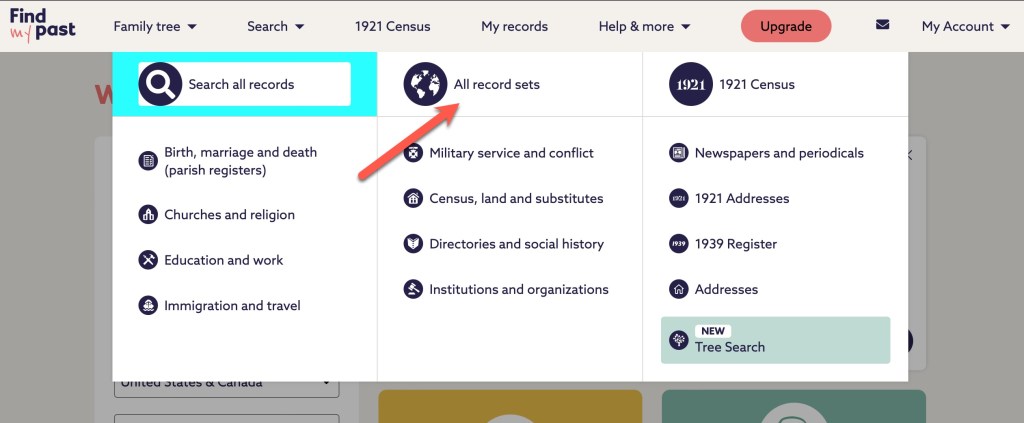
Findmypast, for example calls the catalog “All record sets”:
Findmypast “All record sets”
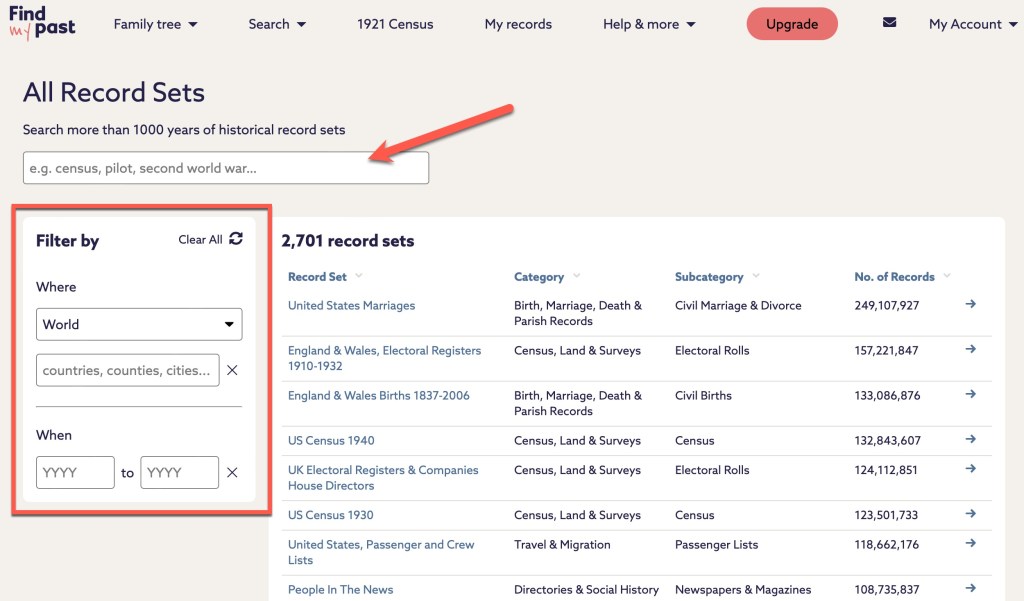
When you click on “All record sets,” you will find a page similar to what we’ve seen before.
Findmypast “All record sets”
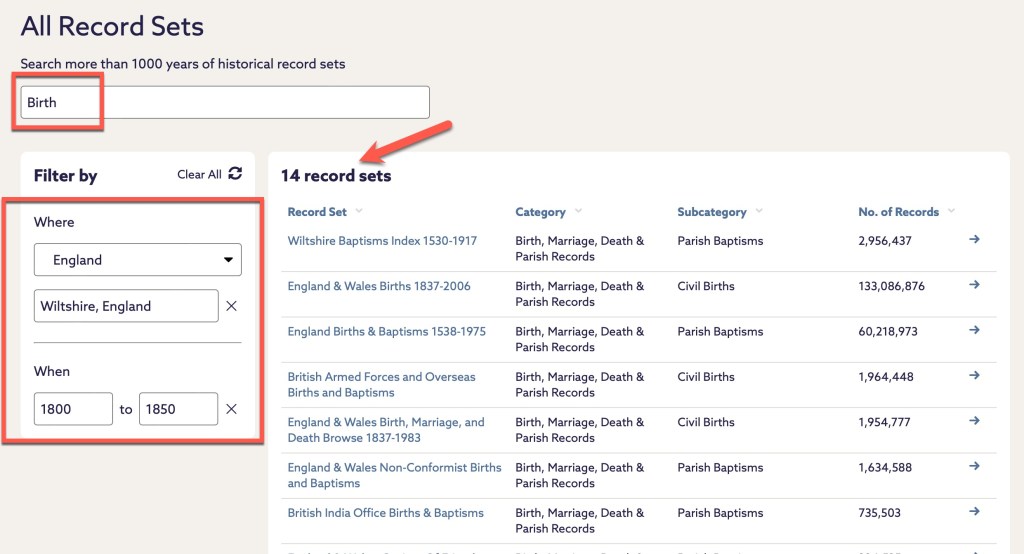
At the top, there is a search box. Along the left, there are some filters you can use to narrow down your results. Let’s take a look at an example from my research. My Sly line came from Wiltshire, England to the U.S. in the 1840s. Let’s narrow down the catalog at Findmypast to see how many record sets they have that might help me learn more about births for my Sly ancestors.
Findmypast search for “birth” and filtered by Wiltshire, England between 1800 and 1850.
In my search example above, there are 14 records sets that I can examine that might help me learn more about my Slys from Wiltshire. At Findmypast, the number of results changes as you type. There’s no waiting to hit “search” to see how many results you might have to wade through. When I search by the surname Sly, and first names of Susanna and William for the parents, there are 7 results.
There are 7 results when I’ve narrowed down the search options.
It doesn’t matter what a site calls it, there is going to be a way to look at the various collections in a site rather than just searching from the main screen.
Starting with the catalog will be a more targeted approach for your searches. By being deliberate with your searching, you can be assured you are looking at the right collections for your exact question. This is especially true for larger websites with many collections and databases such as Ancestry and FamilySearch. And if you are working with more common names, searching the large websites from the front page may not bring the results you really want to the top of the results list. You’ll have to dig, and filter, and narrow, and widen. I’m not saying you can’t do that, but you should also do more pointed, deliberate searches in specific collections, databases, and record sets.
We could go through just about any genealogical website and demonstrate the same things. Get very focused with your research and utilize catalogs to find the collection that makes the most sense to your research.
We will start a new topic next week. Until then, happy searching.
The FamilySearch website has several different aspects to it such as the Family Tree, records, images, books, the research wiki, and more. Ninety-nine percent of the time, my first stop is the catalog.
The Catalog is found under Search.
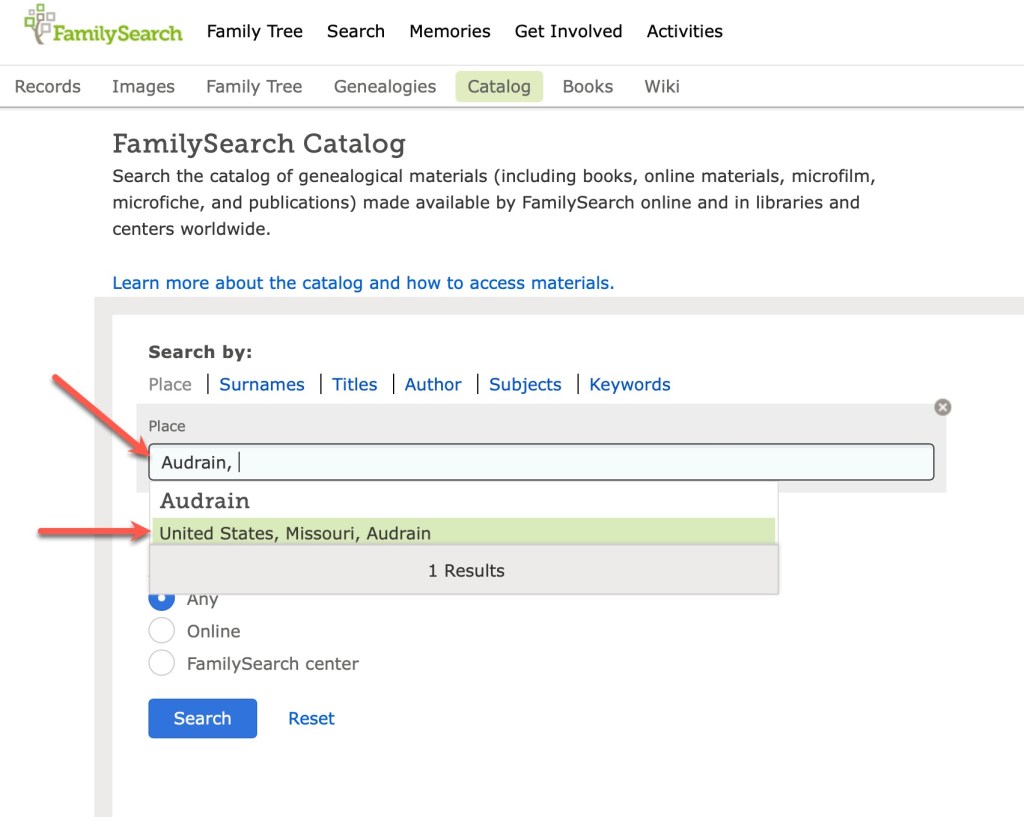
When I am planning my research, or wondering what records might be available for a given location, I always start with the catalog. It’s just the way I work. You might prefer to start with the Wiki or the records or images. This is just how I learned it back when I was a “baby genealogist” and it makes sense to me. You find the catalog under the Search tab. I nearly always put in a location to get started.
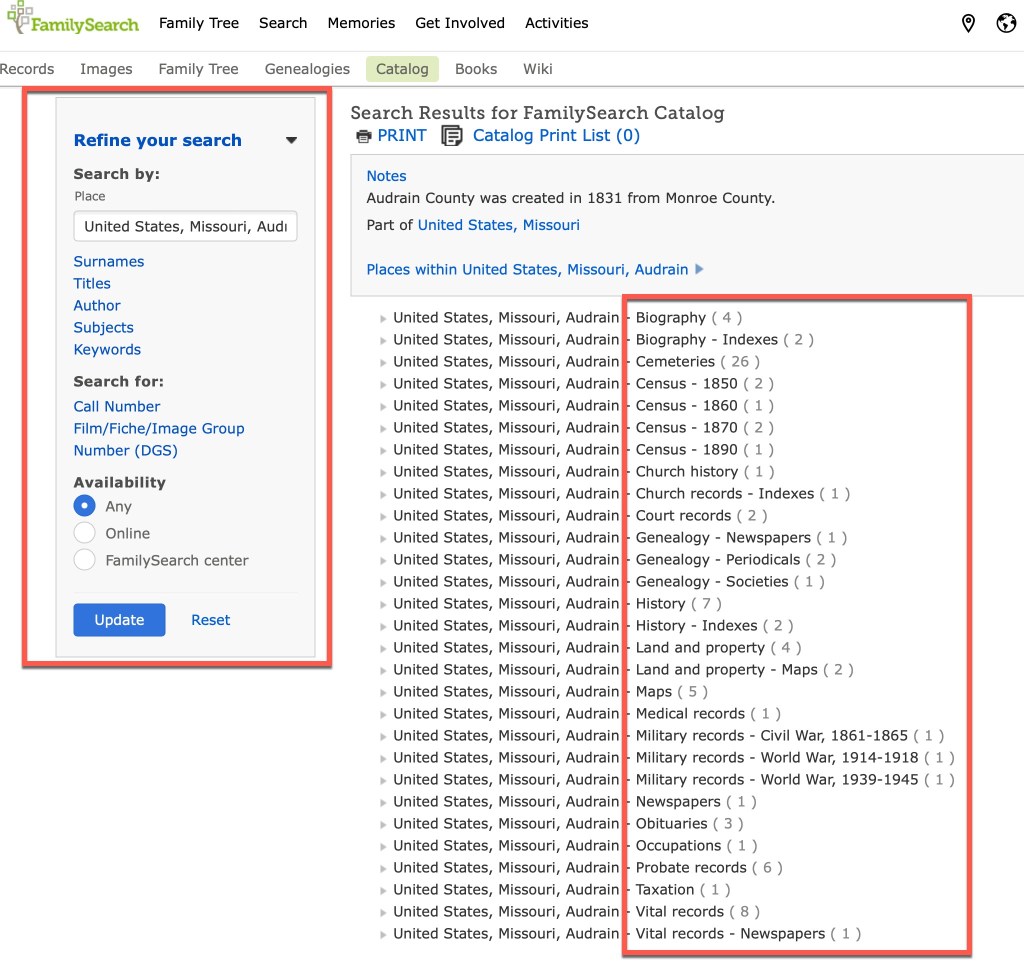
I start by typing in the county, and the catalog brings up the places that match that name. Lucky for us, there’s apparently only one county in the United States named Audrain. Once you click on that location, you are then taken to the page that has all of the topics available for that location.
You’ll notice, on the left are various filters you can use to narrow down your results. However, in the main section on the right, you can see all of the topics (see red box on the right in the screenshot above). You can see the topics such as biography, census, church records, land and property, probate, vital records, and so on. Clicking on vital records gives you the following options:
If those records have been incorporated into a larger database, you might see a link to that database on the page:
This one tells us that the Audrain marriages are included in a larger database. Usually I will click on that link and see if the record I’m seeking can be found quickly. However, they don’t always show up and I’ll go “old school” and click through the digital microfilm. This sometimes happens because of handwriting/indexing issues, or because this particular film hasn’t been indexed, or probably a number of other reasons I am unaware of.
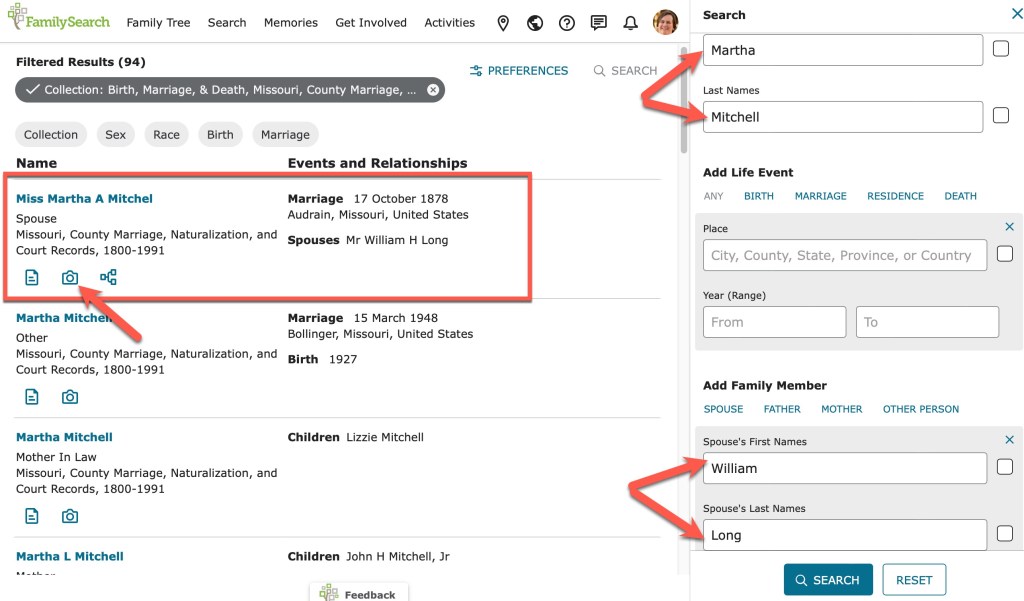
A search through the database does indeed bring up the record I am seeking.
Martha Mitchell, daughter of Thomas Mitchell, married William Long in Audrain County in 1878. The index entry shows a camera icon which, when clicked, takes you directly to the image.
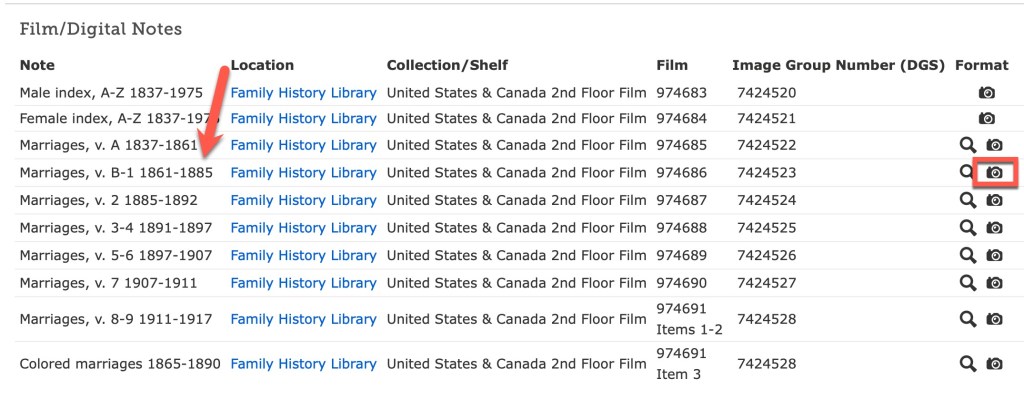
Sometimes, you will not be taken to the image because they haven’t gotten everything connected. But you will usually be given enough information in the index to find the record on the appropriate digitized microfilm.
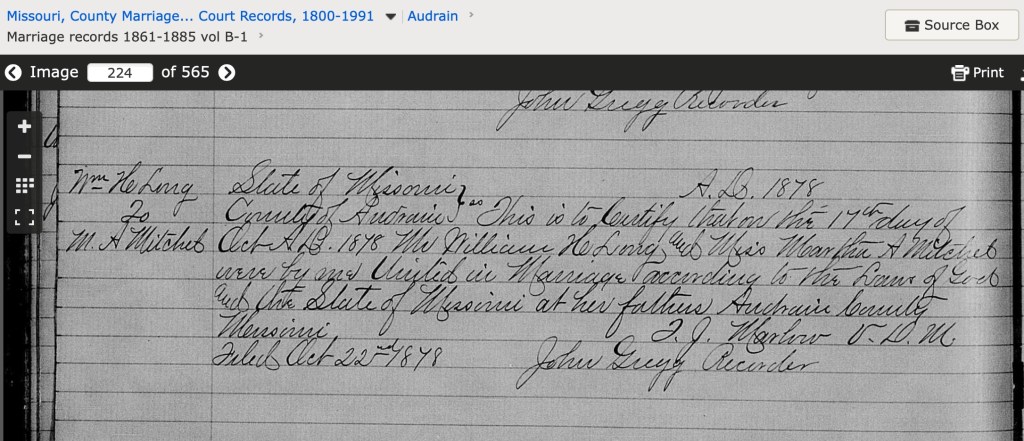
If you click on the camera icon, you will be taken to the digitized microfilm that you can “scroll” through just as if you were looking at the microfilm.
Those are the basics of using the FamilySearch Catalog. There is a lot more to the FamilySearch site, and we may come back to that in a future series. We will stick with catalogs for now. Next time we will look at a few others and see how they are very similar in function.
Ancestry (other websites do this too) has provided users with some filters to help narrow search results. Ancestry also provides this nice “Jump back in” section on the main search screen. This provides you with easy access to recently used databases. If you’ve been following along, I’ve been showing examples from the Audrain County, Missouri, obituaries collections.
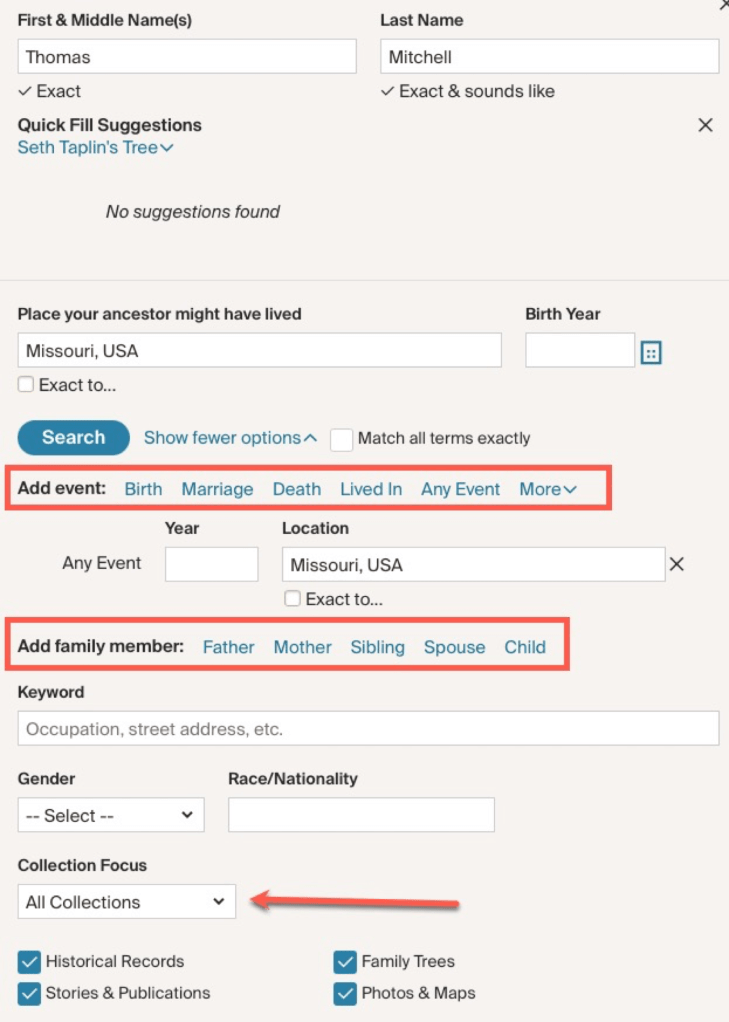
From the main search screen, I’m going to start a new search for Thomas Mitchell in Missouri. Thomas Mitchell is a very common name, so we will then use the filters to help narrow our results.
Main search page starting our search for Thomas Mitchell.
At the time of writing this post, a simple search for Thomas Mitchell in Missouri returned over 380k results! That’s too many. We need to narrow down the results to something more manageable.
Too many results to be useful!
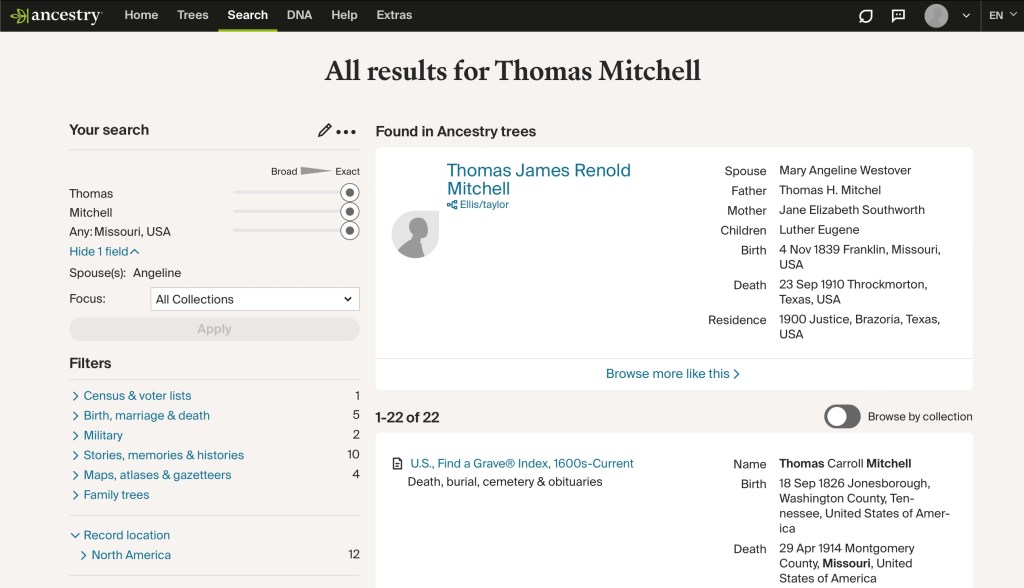
To work with the filters, click on the pencil icon above the list of filters on the left. You can slide the little button on the slider bars under his name and location to get results that are “exact” so “Thomas” only, no Toms, for example. You can also add any other information you know about the person, date of birth or death, parents’ or spouse’s names, etc. You can also narrow down the results to a certain geographic collection under “collection focus.”
For our example here, I am going to add one parameter to start with, Thomas’s wife’s name: Angeline.
I’ve added ‘Angeline’ to the spouse’s name.
Adding Angeline reduced our results to 43k instead of 388k. That’s a big reduction, but still too many results to manage. Continue adding details that you know or utilize the filters on the left to narrow your focus to a type of record. Setting everything to “exact” gets us down to 22 results.
My system is to narrow down the results one filter at a time. Then I might back up and change a different filter leaving a previous one set on “broad” just to see what kind of different results I can get. You never know when an index might have a typo or have run into difficult handwriting. You also never know when an original record might have an error in it. Conducting searches using a variety of filter changes can help you find some of those records that may have been overlooked.
Next time, we will look at some websites other than Ancestry.
We all skip and skim and scan and think we are “reading.” It is just part of how the human brain works. The brain wants to do as little work as possible to conserve energy. It is part of how our species has evolved over time. So we have to work really hard to act against that instinctual desire to be efficient. You have to stop and make yourself read and understand what has been written about various databases. This can often answer questions you’ve formed such as “Why am I not finding a record I think I should be finding?” Reading the “about this database” section might inform you that the county your working in was not included in the database, for example.
The “stuff” you should read about the Audrain County, Missouri, obituaries database.
Not only the “about” section, but other sections on the page can be useful for extending your research and conducting better searches. There are links under “More help” that will point you to other aspects of using Ancestry.
The “More help” boxes provide more tips.
There is a page that explains ways to improve your search results (we will look at this in more detail in another post).
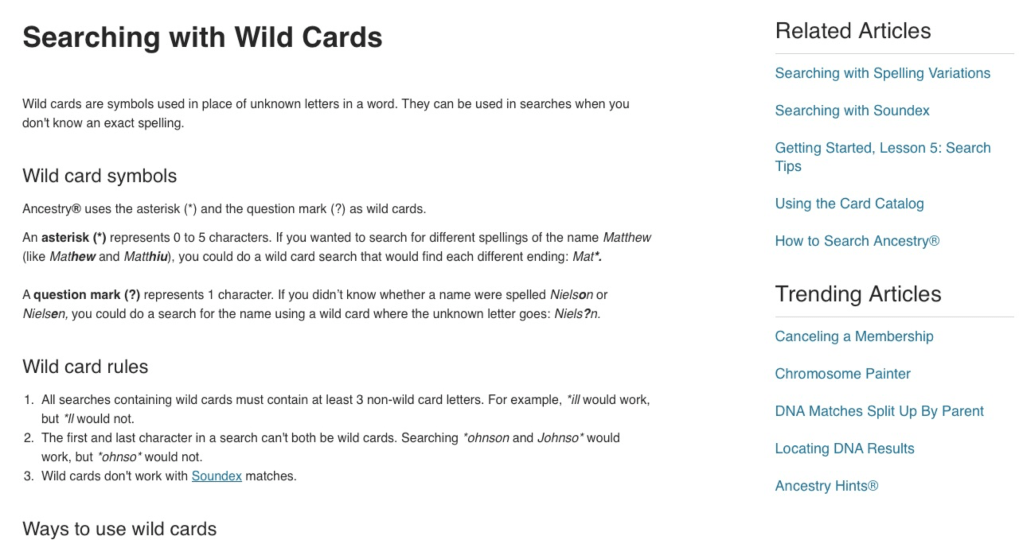
There is a page that explains how to use wildcards for searching.
Page explaining wildcards.
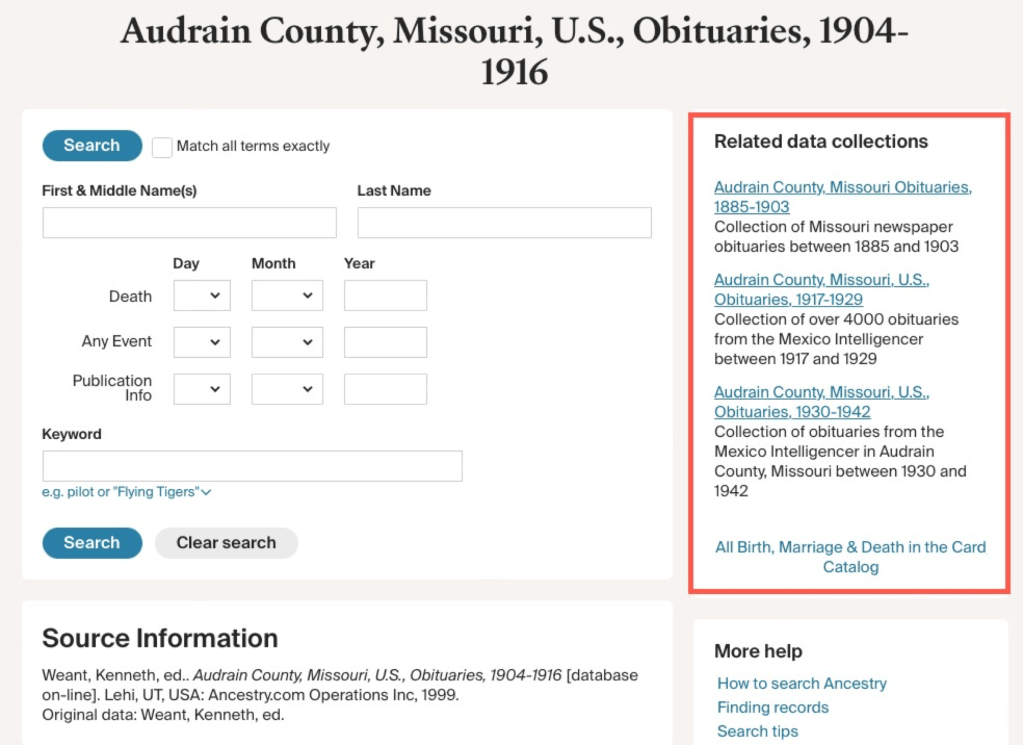
Also, on the search page for a given database, there is a section of “Related data collections.”
Be sure to READ STUFF! That’s tip number one. Reading this “stuff” can often provide you with answers, more clues, and new avenues to pursue.










 Genealogy Pants